

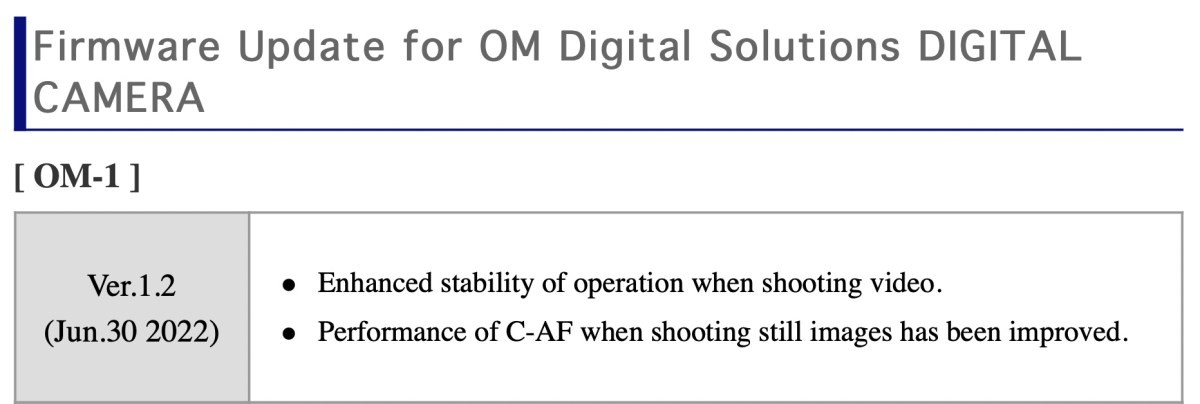
Firmware Update for Olympus Cameras and, in particular, the new OM-1 firmware version 1.2 is now available. Below is a screenshot of the benefits of the new 1.2 version firmware.
Firmware Update Process for Mac M1 Machines
Olympus/OM Digital Solutions has what seems like a fairly well-detailed page explaining the update process for the new Apple Silicon M1 machines. But once you start the process you realize the directions are missing a very important detail.
In the first step 1-2 it tells you to “Press and hold the Start Up button to start it up (turn on the power).” So it sounds like it’s simply telling you to restart your Mac. Unfortunately, that’s not the case. To get to the proper screen you have to shut your Mac down. Once it’s off you HOLD the power button for an EXTENDED period of time – long enough for the Mac to go into a special startup mode that allows you to make security setting changes.
Nowhere on the OM Digital Solutions page is the update process for the new Apple Silicon M1 machines. But once you start the process, you realize the directions are missing a very important detail. I had to call Apple to understand this better and thankfully, Apple knew it required we had to HOLD the Start button down to get into this mode.
Please OM Digital Solutions, change the wording in this document Q&A for Mac(Apple M1) to explain the need to HOLD the start button for 10 seconds. Below are the specific steps I went through to get my Mac Silicon M1-based Mac set up to see the OM Digital Solutions update.
Steps to updating Silicon M1 Mac
Shut Mac down. Restart by holding down the power button for 10 seconds. The system will reboot into System Recovery mode. Select the Options icon.
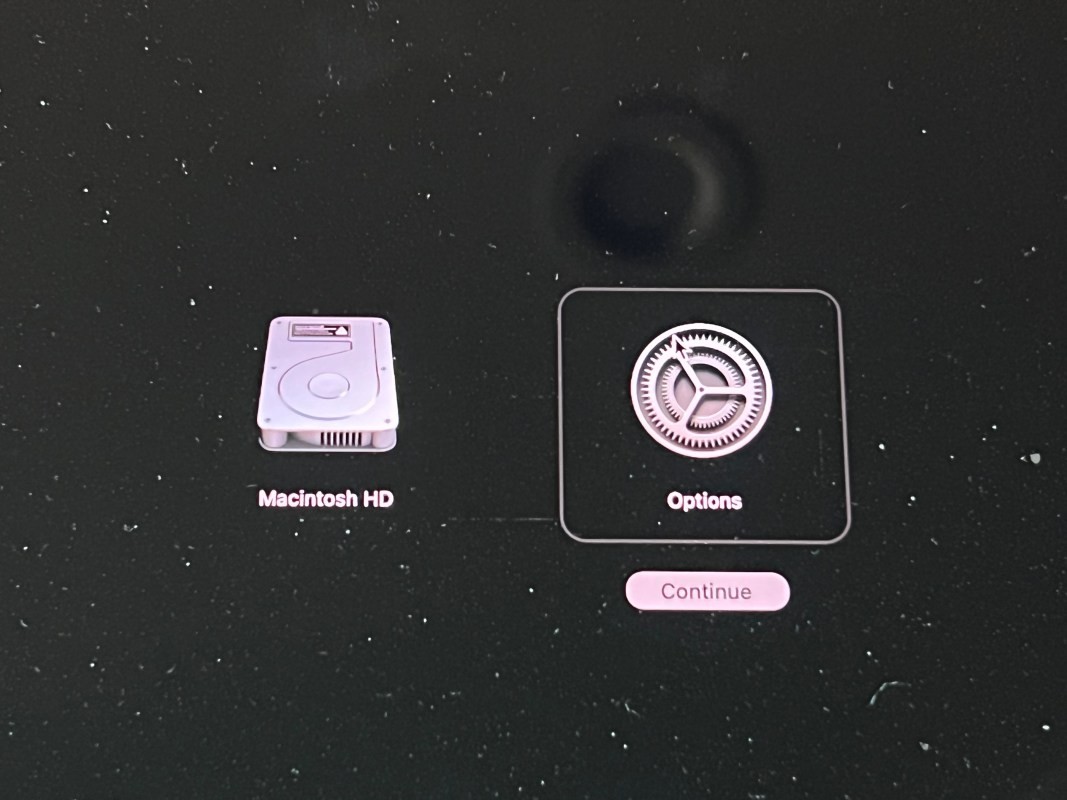
This takes you into System Recovery. You’ll get a screen asking for your language which you choose if it’s not already what you want.
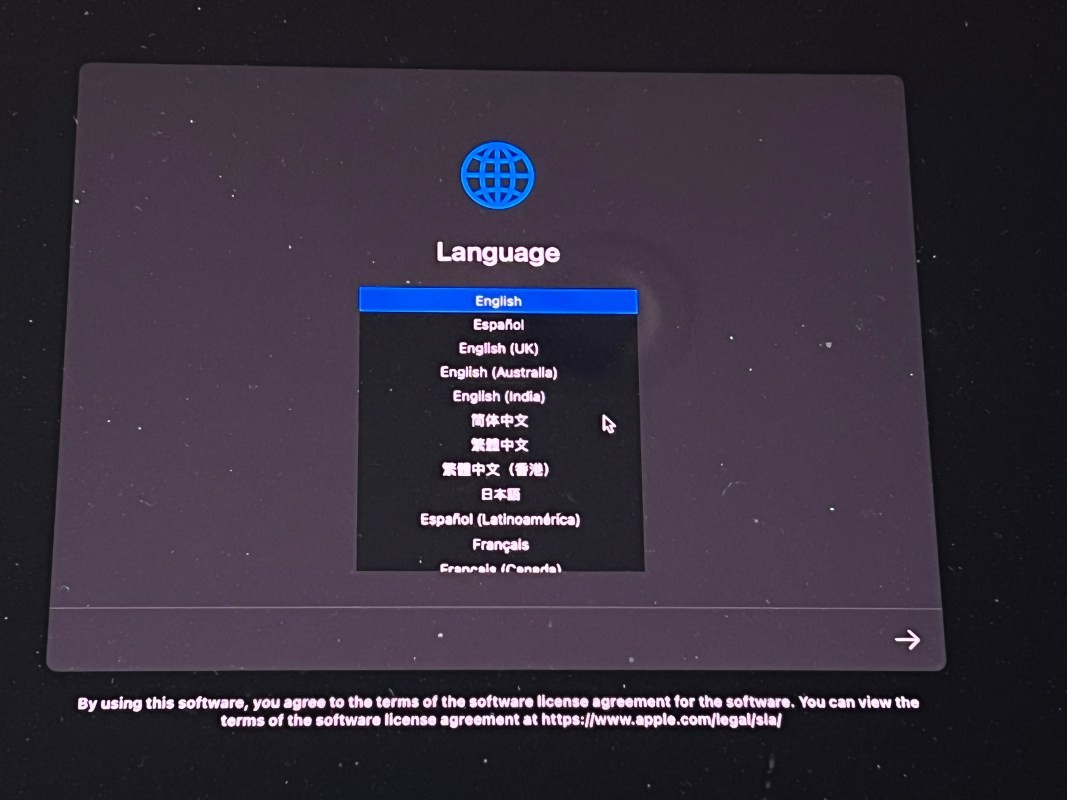
Click the arrow in the lower right side of the screen to move forward. The next screen you’ll get is the Mac Recovery OS screen which has a number of options in the popup window. But you need to go up to the top of the screen and select Start Security Utility.
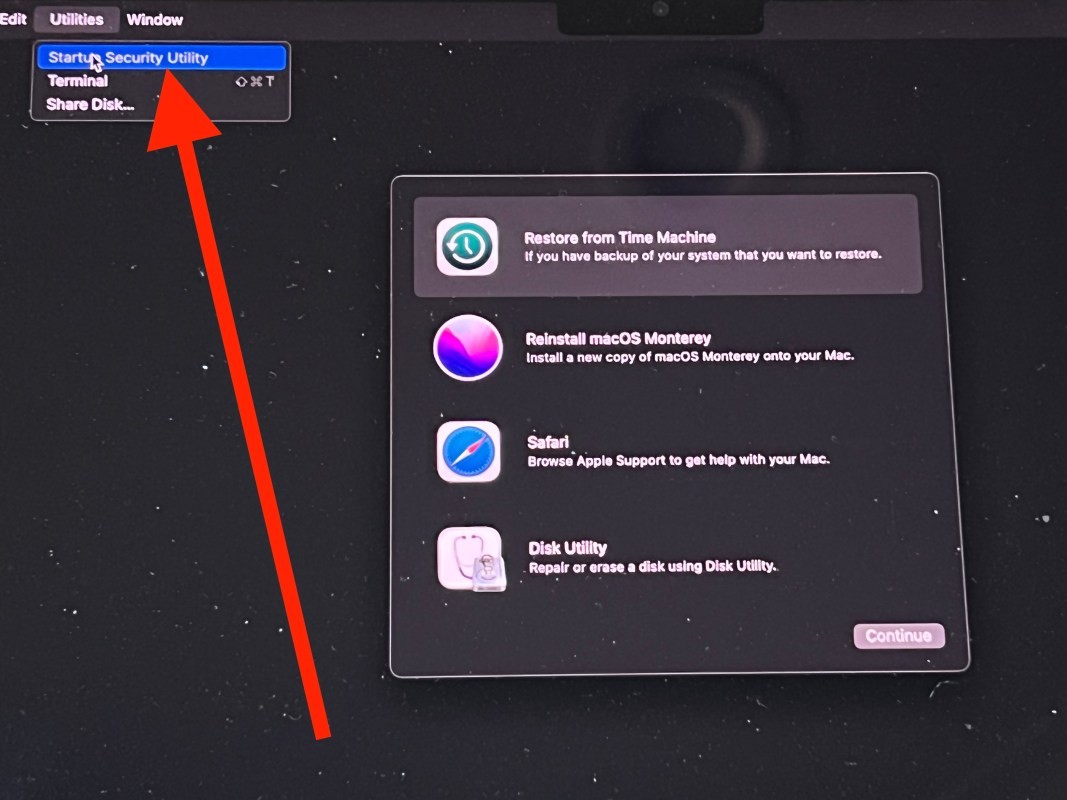
Click the Startup Security Utility option which will take you to the next window.
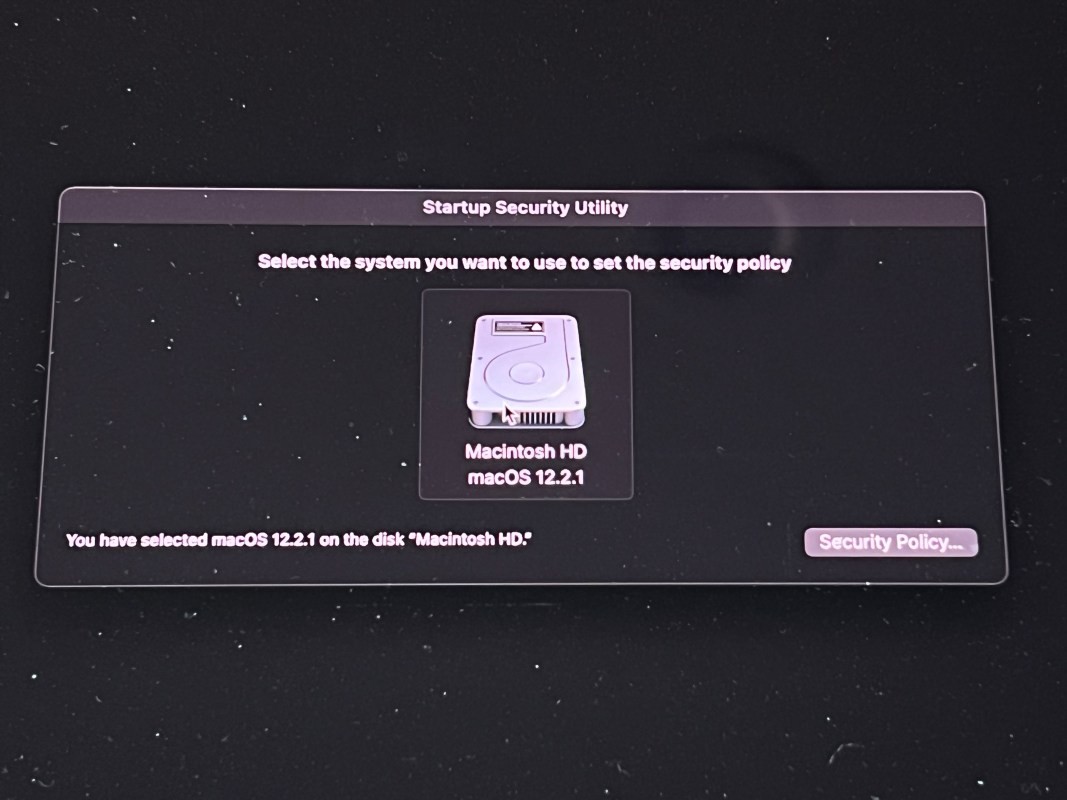
Select the hard drive and then click the box Security Policy in the bottom right of the popup window. This takes you to the next screen which is Security Policy for Macintosh HD.
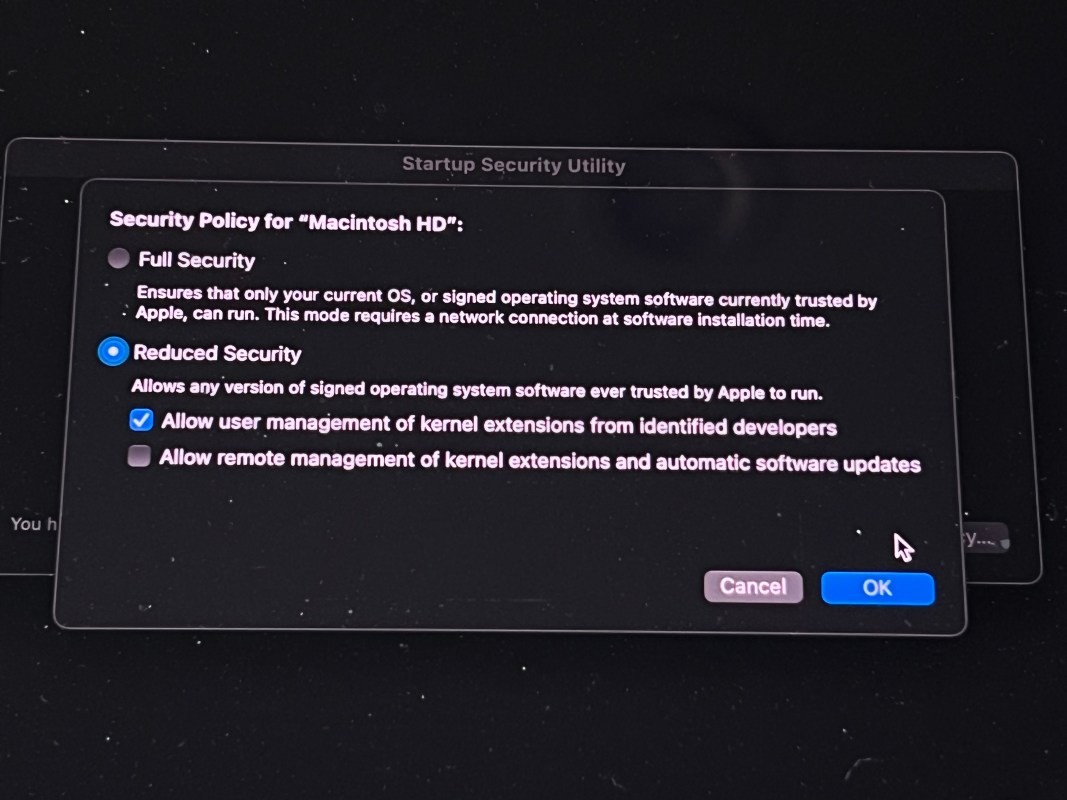
Make sure you check the options exactly as shown in the screenshot above, then click OK. You should be done with this part. Now go back up to the left corner and click restart. You will be taken back to a normal startup mode for your mac.
OM Digital Solutions Instructions
The rest of the instructions that are given by OM Digital Solutions are accurate and easy to follow. It was the first part of their instructions that were poorly explained. Once you fix the security changes in System Recovery Mode you’ll be able to follow the rest of these instructions from OM Digital Solutions.
Enable camera drivers in Security & Privacy
Open the Security & Privacy window after rebooting the computer. In General, set the following:
Under Allow apps downloaded from, click App Store and identified developers.
Click Allow next to System software from developer “OM Digital Solutions Corporation” was blocked from loading.
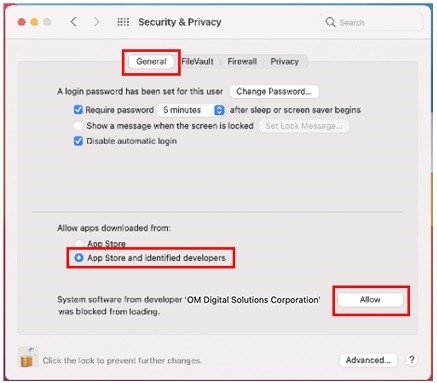
Click Restart
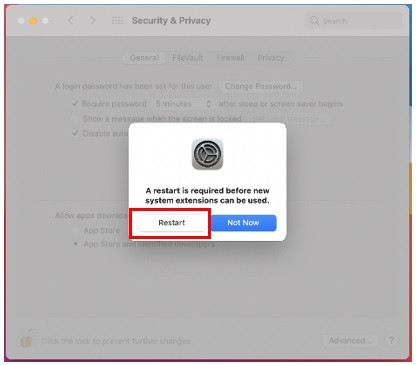
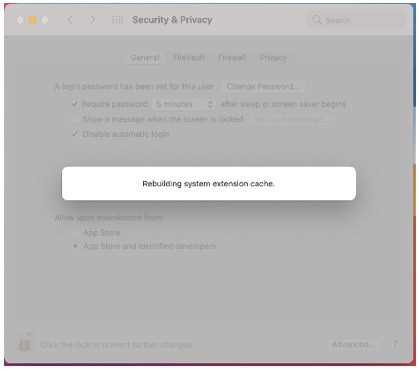
The Mac (computer) restarts after the message “Rebuilding system extension cache” is displayed.
Camera drivers are enabled after restarting the Mac. The camera update function for OM Workspace is available.
The final piece of this puzzle was to Uninstall Workspace and then reinstall it. After all this, I was finally able to update the firmware on all three of my OM-1 cameras. Would be nice if it was easier.
Intel Based Macs
For Intel-based Macs, the process is the same only you have to hold down Command+R to get into the Mac Recovery Mode. Then just follow the same instructions as I outlined for the Silicon-based Macs.