

I’m a huge fan of Apple’s Keynote and Pages programs. Keynote is the Apple equivalent to PowerPoint and Pages is the Apple version of Word. Both are extremely powerful and allow you to actually convert all respective documents to/from either of Microsoft’s versions of the similar program, and it does these conversions with virtually no issues. Once in awhile the converted document may not have the exact same font. I’ve had that happen before but it’s never been a show stopping problem.
When you compare the prices for the Apple programs to those from Microsoft you quickly see you can save a huge amount of money by going with what Apple offers. On the Apple App store Pages is $19.99 and Keynote is the same. To get the equivalent from MS you would pay $139.00 for Word and $139.00 for PowerPoint each. The price drops about twenty dollars if you can qualify for the student edition or you can buy the overall Office Package for between $119.00 -$349.00. For those of you who need an Excel equivalent, Apple also has Numbers, once again for $19.99.
Ok so the reason for this post is not to talk about how great these programs are but to share a tip for an issue in both these programs that doesn’t work so great. It’s a tip for working with images within both Keynote and Pages. Here’s the problem – when you drop an image into Keynote or Pages, it’s always been nearly impossible to pull it back out again other than just deleting it. The reason I want to sometimes do this is the need to add additional annotations to the image that I didn’t do before adding it. Whenever I’ve tried to drag the image out of either one of these programs, it would drag to the border of the page or slide and get hidden behind the edges of the document/slide. So I often would just delete the image which you can do with no problem, however, to replace the image I would have to go back into my image files, find the original again and reprocess another JPEG, add the annotations and drop it back into the program. Always a bit painful.
Today I was working on a new program for the upcoming Mentors Series Trek to Kentucky coming in October, and I wanted to pull an image out to make annotations on it. I once again ran into the problem I discussed above, so I got on the horn with Apple. Here’s what I learned. When in either Pages or Keynote you always have what is called the Inspector. This is a little popup window that allows you to do all kinds of tricks and options for making your documents look really professional, snappy or just cool. Both Pages and Keynote have the Inspector button and window. See the image below.
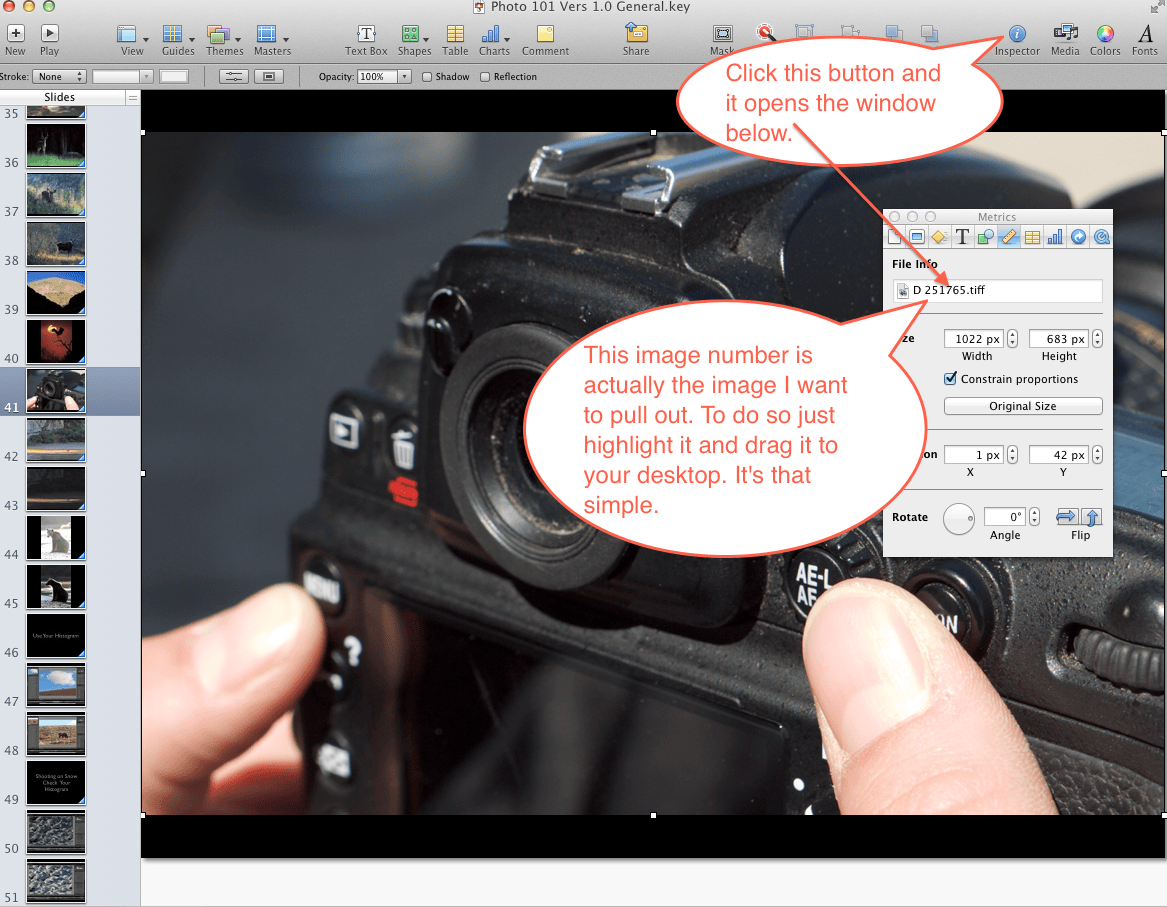
This is a visual of the Inspector button and subsequent window that opens up once you click on the button. It also shows the image file number in the inspector. To get the image out, just highlight the image and drag it to your desktop.
When you click on the Inspector there are tabs that allow you to control specific things relating to the image. The one you want to click on is the Metrics tab. This brings up a window as you see above that shows the name of the image. Now all you have to do is drag the image out of here and on to your desktop. Voila, you now have the ability to open it in Preview and make annotations and then drop it back into Keynote.
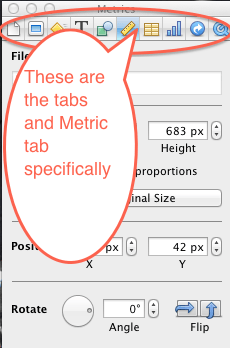
The Inspector window with the Metrics Tab pointed out for your to see.
So that’s a trick I’m very happy to know about. This exact issue has been driving me crazy about three times a year for several years. Thanks to Peter in Apple Care Support I finally got an answer for this issue. I looked all over the web to figure this out and nobody has talked about it that I could find. Pass the word and share this. If you Google this issue you will find a lot of people asking about how to ‘Show Package Contents’ which is how you used to remove images from Keynote before iWorks/Keynote 09. This is a much more simple and effective.