

One of the tremendous benefits of using a professional grade photo Digital Asset Management (DAM) program is the ability to keep your original photos on external hard drives. Two of the most popular DAM programs are Apple’s Aperture and Adobe’s Lightroom. These two options allow you to keep from filling up your computer’s hard drive and makes it simple to move your images from one location to the next. In the DAM world, saving your images to a drive outside the program is known as a Referenced Files setup. If you take your photography seriously this is the only way to go.
When I’m on the road I save all my digital files to external, portable hard drives which currently are the Seagate 1TB Backup Portable Plus drives. I use Apple’s Aperture and it allows me to select the external hard drive for the main and the backup location all at one time. During the Ingest process I pass the images from the camera card, through my Macbook Pro and out to the two Seagate drives. When I return to the studio, I load the images I’ve shot to larger desktop drives which include the new Drobo 5D and two G-Tech 8TB Thunderbolt drives. The G-Techs are what I consider my original files, the Drobo 5D holds what I refer to as my backup. That’ the basic setup and now I want to share an Aperture and Lightroom tip that relates to all of the above.
When I return from a shoot I will copy all my images over to both the Drobo and the G-Tech drives. I leave the original images on the Seagate portable drives as well for what I consider my original masters. By moving the images over to the desktop drives I now have to tell Aperture where the relocated the photos now reside. This is necessary with both Aperture and Lightroom. Basically, I’m moving the files and all computers need to be updated as to where the files went. If I don’t do this then Aperture has no idea where the originals are now located. To warn you it’s not seeing the original Aperture will put a little warning icon in the lower right corner of the thumbnail. Screen shot below to see what it looks like.
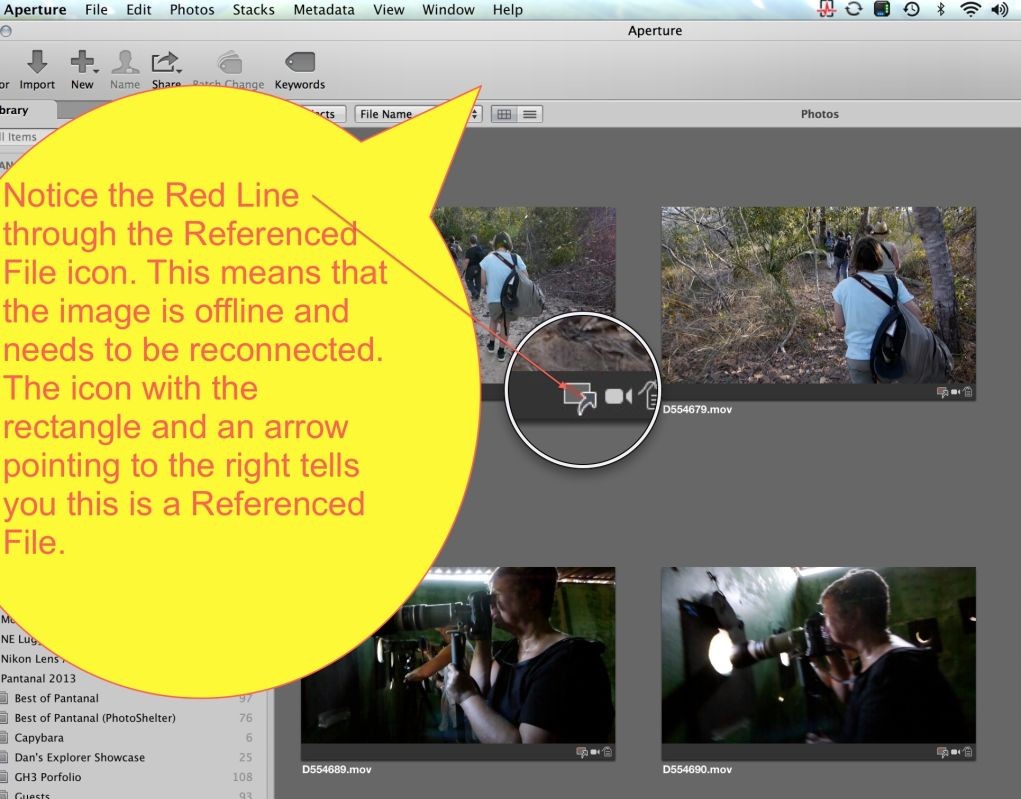
Aperture shows a samll thumbnail with an arrow in the lower right corner of the thumbnail image. This signifies it is Referenced and Offline.
For those using Adobe’s Lightroom I’ve included a screen shot below that shows a similar situation to what happens in Aperture. Lightroom shows an exclamation mark for an offline image. Both programs need to be shown where the images have been relocated. In Lightroom you just click on the exclamation mark and it will take you to a screen that asks if you want to relocate the originals. Here you have the opportunity to navigate to the external hard drive you moved the image to and reconnect it. Lightroom will also reconnect any other images it finds offline and on the same drive.
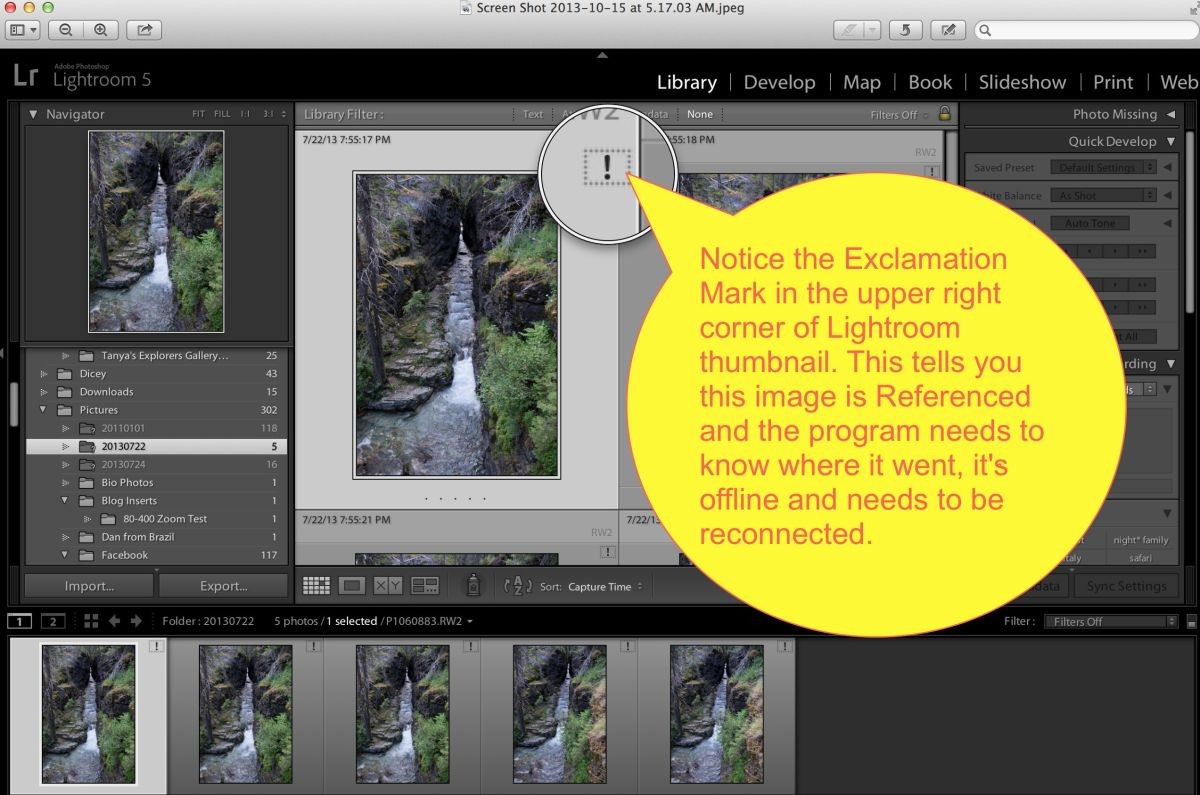
Lightroom shows an exclamation mark in the upper right corner of the thumbnail to signify file is Referenced and Offline.
Now back to Aperture. One of the frustrations I have with Aperture is an issue I kept seeing where I would reconnect all images that were offline, or I thought I was reconnecting them, only to see more pop up as I scrolled down through the Library of images. After taking with an Apple Aperture expert they informed me that if a file was online at one point, it won’t show as offline unless you scroll down looking at the thumbnails. This prompts the program to reconnect and when the image is no longer online the disconnected Referenced icon shows up. This was driving me nuts since I would do a search for all photos offline through the Aperture search window, selecting them all, then reconnecting them. But if there were images I had not scrolled through it wouldn’t see them as disconnected and I would then spend immense amounts of time reconnecting piece meal as new ones showed up while I was looking through the library. I was pulling my hair out.
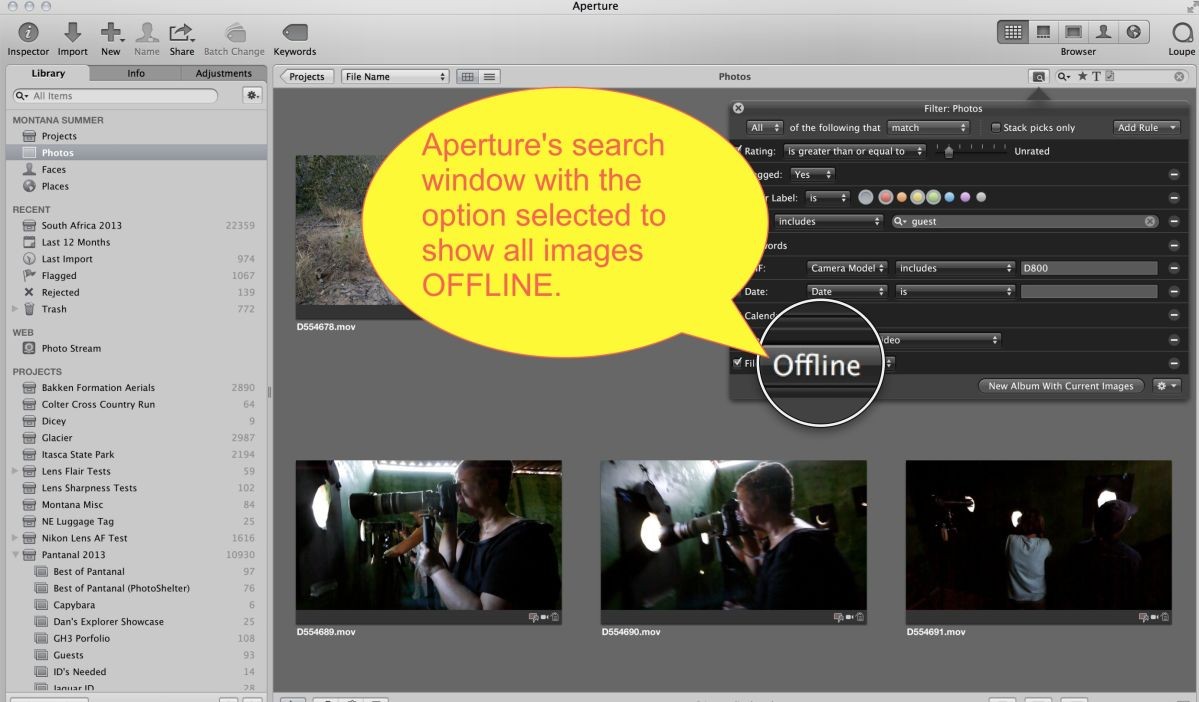
Aperture’s highly effective and customizable search tool. This is what a DAM program is all about.
Through my own trial and error, with clues from the Aperture Genius, which he wasn’t unfortunately, I figured out a fail safe answer to find all offline images in one fell swoop. What I now do is Select all images in an entire library. I then go to the Photos Tab at the top of the Aperture window, then navigate down the list to the fourth option from the bottom, “Reprocess Originals” If the library is large this will take a bit of time, but it forces all the images to reconnect in their current status which will force the issue to show all images that are truly offline. I then select all the offline images and go to the File Tab, navigate down to the Locate Referenced Files option and go through the process to reconnect. This solved a lot of frustrations and quite frankly Lightroom makes this a much more simple process. On Lightroom if the file is offline, the Exclamation mark shows up whether the images have been scrolled through or not. Chalk one up to Lightroom. Lets hope we see an Aperture improvement on this front in Aperture 4, Aperture X or whatever it may be called.
Hope this helps any others who may have experienced this same problem. Things like this are hard to explain in text form so if you have any questions just let me know.